Featured post

Free Online Money Earning, no investment required

If you are trying to earn money online & need only small extra income less than $200 (Rs.12,000) then PTC sites are the best way to st...

Showing posts with label Windows. Show all posts

Update Windows 8/8.1 to Windows 10

Some people are thinking about downloading the whole new Windows 10 or buy it but here I will give the tutorial for directly update your Windows 8/8.1 to Windows 10. you don't have to download any third party software to download this update.


Only you have to follow 3 steps-

  1. Enable Automatic Update
  2. Launch Command Prompt in Administrator Mode 
  3. Enter the wuauclt.exe/updatenow command and hit ENTER KEY.
Now wait for the download to complete and follow the instructions that will pop out in your screen after the download.       

Install Windows Phone 10 Manually

This is only confirmed working for the AT&T Lumia 1520 and may work as is for other phones but also might require tweaks to the XML (see below). It is very possible to brick your phone with this. Your mileage may vary!


Follow the steps Below:

1. For the Lumia 1520 (and other phones?) reset your phone using the [url="http://www.microsoft.com/en-us/mobile/support/faq/?action=singleTopic&topic=FA142987"]Windows Phone recovery tool. Recommend not logging in and setting everything up yet and just waiting til the end and doing a reset and letting it restore after you’re on Windows 10. This may not be required for your device but most likely is due to the space issue cited by Microsoft. You can see your available space in the About menu of the Windows Insiders app. Before resetting was ~200mb and after it was ~600mb. You can try without resetting but may get an error after it tries to download and install the update.
2. Install the Windows Insider app on your phone (you will need to have a store account configured)
3. Open the insiders app and go to the about options in the app bar and screenshot/make notes/email the settings to yourself. You may need this later.
4. Download and extract the WPInsidersHacks app (attached to this post) to your computer
5. Start the WPInsiderHacks app on pc, approve any firewall requests
6. Connect to the same WiFi that your PC is on. Edit the settings for the WiFi connection to turn on the Proxy and set it to use the PC’s IP address and enter 8877 for the port
7. Open Internet Explorer on your phone and navigate to http://[pc.ip.add.ress]:8877 where [pc.ip.add.ress] is the IP address of the PC running the WPInsidersHacks app
8. Tap on the link at the bottom to the fiddler root certificate
9. When prompted click open and then install to trust the cert and ok at the confirmation
10. Run the Windows Insider app and tap get preview builds
11. Tap on which custom action you’d like to perform. In my case I hit "Set to ATT Lumia 635" and click the arrow at the bottom
12. Accept the agreement and click the check mark at the bottom. the app will close
13. Now clear your proxy settings and run the insider app again
14. Tap get preview builds and login with your Microsoft account
15. Select the fast branch (if you’re reading this of course you want the fast branch) and click the arrow at the bottom
16. Go into the phone settings and check for updates. With any luck you should have Windows 10 there for you to install. On my AT&T 1520 it had to do 8.1 first but it kept going to 10 after 8.1 installed (had to check for updates again)
17. You’ll probably want to go into the settings and do another reset and then log into the phone and let it restore your previous data

The Windows Insider options are populated from the WPFlights.xml file. Feel free to edit/add stuff. I've experimented with writing to other keys but had mixed results. I wasn't able to write to the Software\Microsoft\Settings\{1DEF9B7D-2322-40eb-A007-16A75D5CDA6F} for example (seemed to not like the curly braces?). It should have all the same permissons as the preview for developers app. You'll just need to run the WPInsiderHacks app on your PC and point your phone's proxy settings to it if you want to go back and set something again (such as enabling tethering).

NOTE: This is not androite's work. Just sharing.
Source: XDA-Dev

Dual Boot Backtrack 5 AND Windows 7/8

NOTE: The following method of installation is the simplest available. We have made it in the assumption that you have a Windows installation that is taking up all the space on your disk drive and you would like to resize and repartition the disk drive in order to allow a BackTrack install alongside your Windows.

WARNING: BACK-UP YOUR WINDOWS INSTALLATION FIRST!
    • We select our language, in this case English and then click the Forward button.
    we select out geographical location (The Region and Time Zone) and click Forward
     
    Chose your keyboard layout. We are going to leave it the default which is USA and click Forward.  
  •  
  • Now it’s time to partition the Disk, for a quick and successful dual-boot install we will choose the Install them side by side, choosing between them each startup option and hit Forward.. 
    • WARNING: The installer might stop at certain percentages, leave it for a few minutes and it will resume.
    • Hit the Restart Now button, and enjoy Backtrack! 

    • When the computer will boot, you will be given a choice to boot Backtrack or Windows.
    • After the reboot, you can log in with the default username root and password toor. Do not forget to change this default root password by issuing the passwd command.
    • As you can see the splash screen disappeared after the reboot. In order to fix it just run fix-splash, and the splash screen will appear on the next boot.
     

[Download] Microsoft Windows 8 all version Activator Loader


This program is still in it's beta stages and I will keep it updated once a week.

-- Instructions:
1. Extract the content of the ZIP archive.
2. Run the program as administrator.
3. Click "Windows 8 Install".

4. After the re-boot you'll have your Windows 8 activated.

Download link : DropBox

[Download] Internet Download Manager 6.15 Build 8 | Full crack | Free full version

Internet Download Manager (IDM) is a tool to increase download speeds by up to 5 times, resume and schedule downloads. Comprehensive error recovery and resume capability will restart broken or interrupted downloads due to lost connections, network problems, computer shutdowns, or unexpected power outages. Simple graphic user interface makes IDM user friendly and easy to use.Internet Download Manager has a smart download logic accelerator that features intelligent dynamic file segmentation and safe multipart downloading technology to accelerate your downloads. Unlike other download managers and accelerators Internet Download Manager segments downloaded files dynamically during download process and reuses available connections without additional connect and login stages to achieve best acceleration performance.

Download : DropBox

How to hack/crack BIOS password

Securing your own computer is very important and most people rely on BIOS passwords to protect their computer. But this is a huge mistake since anyone with a little bit of knowledge is able to bypass it easily.
Bypassing BIOS password protected computers
Most BIOS chips have built-in master passwords or hidden routes which enable you to bypass the password protection in case you lost or forgot your password.
Master passwords
There are several web sites that list all the BIOS master passwords. You can also just google “BIOS master password list” and you will find tons of lists.
It is not guaranteed that these master passwords work because of the different BIOS chips but there is a pretty good chance that they will.
Bypassing it the other way You can also bypass it if you are already running Windows( I acutally don’t recommend doing this since it can be harmful to your BIOS, only use it if you know what you are doing). Open the command prompt cmd.exe . There enter:
Debug [Enter]
o 70 17 [Enter]
o 71 17 [Enter]
q [Enter]
This will restart the computer.
http://www.xs4all.nl/~matrix/mpwlist.html visit this site for master password

[Download] VMware Workstation v9.0 | Build 812388 + Keygen {Full and free}


What's New

VMware Workstation 9 delivers best-in-class Windows 8 support and innovative new features that transform the way technical professionals work with virtual machines, whether they reside on their PCs or on private enterprise clouds.

Download VMware 9 : Direct Download | Torrent Download


Windows 8

Workstation 9 has been designed to run on Windows 8 and run Windows 8 virtual machines. Easy Install has been enhanced to recognize Windows 8. Workstation 9 has been enhanced to support the Windows 8 user interface (formerly known as Metro). Toggling between Metro and the Windows Desktop can be done by simply pressing the Windows key on the keyboard and Unity intelligently handles the Metro interface. Workstation 9 also includes multi-touch support for driving the Windows 8 Metro interface running in Workstation on a Windows 8 tablet.

Graphics Improvements

VMware has made substantial changes to Workstation 9 graphics virtualization infrastructure. The enhancements include a display-only graphics driver that can render 3D in Windows 8 without hardware acceleration, improvements to make graphics applications like AutoCAD and SolidWorks render more quickly and accurately, an improved Windows XP graphics driver and fundamental changes to improve performance and enable more advanced graphics capabilities in the future.

OpenGL for Linux Guests

VMware has developed an OpenGL graphics driver and up-streamed it to X.Org. This allows VMware's customers to use the new graphics capabilities in current Linux distributions without needing to install VMware Tools. The version of X.Org that includes the driver is being shipped in Ubuntu 12.04 among other Linux new distributions. Workstation 9 includes enhancements to the virtual graphics device to improve the overall speed and accuracy of rendering OpenGL graphics in Linux virtual machines.

Restricted Virtual Machines

This new capability allows the author of an encrypted virtual machine to require users to enter an additional password to change their virtual machine settings. This feature enables IT professionals and educational institutions to create virtual machines to be used by their employees and students that prevent these users from enabling shared folders, dragging and dropping files, attaching USB devices, and overcommitting system resources. Restricted virtual machines can be run in VMware Workstation 9, VMware Player 5, and VMware Fusion 5 on Windows, Linux or Mac PCs.

WSX

WSX is a prototype of a new VMware Workstation web interface that enables users to access their Shared virtual machines via a web browser on a tablet, smart phone or PC without installing any additional applications or browser plug-ins. This service renders an HTML5 web page that can connect to your Workstation hosts, enumerate the available Shared virtual machines and allow you to power them on and interact with the desktop. Both the Windows .msi and Linux .bundle installations are available for download along with VMware Workstation 9.0
WSX is currently not supported for production environments. The number of devices and browsers available on the market make it extremely difficult to test this feature thoroughly to ensure it works well everywhere.
This feature requires a very modern browser that supports HTML5 with WebSockets. VMware recommends using the Google Chrome 17 browser on PCs and the Apple Safari 5 browser on Mac OS hosts and iPads. Currently there are issues using this feature with Microsoft Internet Explorer 10. WSX may work with other browsers and on Android tablets running Ice Cream Sandwich with the latest version of Google Chrome installed, but more testing is required.

Downloading Virtual Machines from vSphere

Workstation 8 enabled customers to upload virtual machines to vSphere. Workstation 9 now enables downloading virtual machines from vSphere by dragging them from the remote host to the My Computer section of the Virtual Machine Library.

USB 3.0

Workstation 9 supports attaching USB 3.0 devices to Windows 8 virtual machines. The latest portable devices use USB 3 (SuperSpeed) to achieve faster transfer rates for data. USB 3.0 devices such as portable storage devices and video equipment can be connected directly to Windows 8 and Linux virtual machines that contain in-box drivers USB 3.0 controllers.

Nested Virtualization

Workstation 9 improves the implementation of virtual Intel VT-x/EPT or AMD-V/RVI extensions. This allows users to run ESX as a guest OS and run a 64-bit operating system nested in ESX using less system resources.
Note: If you enabled the virtualization extensions in a virtual machine running on Workstation 8, you might need to disable the extensions, upgrade the virtual machine to the latest virtual hardware version (compatible with Workstation 9), and then re-enable the extensions.

Hyper-V

Hyper-V has been added to the Workstation 9 guest operating system list. This enables customers to run Windows 8 with Hyper-V enabled, or install Hyper-V Server. This can be used for educational purposes or for building prototype Hybrid Clouds. This feature is NOT SUPPORTED and probably never will be. Microsoft does not support nesting of their hypervisor which makes it extremely difficult - if not impossible for VMware to fix issues that may occur in this configuration. For this reason, this capability has been implemented purely to see if we could do it!
CAUTION: DO NOT ATTEMPT TO RUN HYPER-V ON A VIRTUAL MACHINE IN PRODUCTION.

Virtual Performance Counters

VMware virtual processors now include the capability to enable virtual performance counters which will allow developers to run profiling applications, such as Intel's vTune, in a virtual machine.

Remoting Improvements

The experience when remotely connecting to a virtual machine running in Workstation 9 with a VNC client or interacting with the desktop of a virtual machine running on vSphere from within Workstation has been significantly improved.

Disk Cleanup

Virtual machines consume a large amount of space on your hard drive. Workstation 9 includes a new management option to easily recover disk space.

Quick Switch II

Previous versions of VMware Workstation included a view mode called "Quick Switch" that displayed tabs along the top of the screen to easily switch between running virtual machines. We removed this functionality in Workstation 8. The feedback we received has encouraged us to introduce a similar feature. On Windows, hosts tabs have been included in the full screen toolbar.

Thumbnail Actions

Views of your virtual machine on the task bar now include controls to change the power state.

Saved Filters

Workstation 9 automatically saves recent virtual machine library searches as filters to easily apply them the next time you run Workstation.

VMware Player

In addition to getting all of the virtual hardware improvements, the VMware Player user interface has been completely revamped. The user interface conforms with Windows standards, menus have been updated, the toolbar now matches Workstation in regular and full screen mode, we have added device icons, and we have made many more little improvements.
VMware Player is also now available for commercial use. A commercial license for VMware Player 5 is included with VMware Fusion 5 Professional to enable customers to run virtual machines on Windows or Linux PCs and on Macs using a single license key!

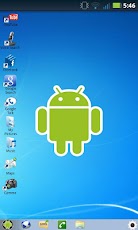
Download Windows 8 for Android apk

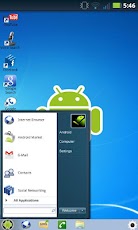
Download Windows 7 for Android apk

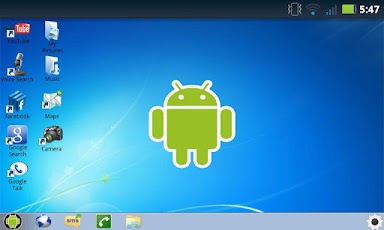
You can now make your Android mobile device work like a desktop computer!
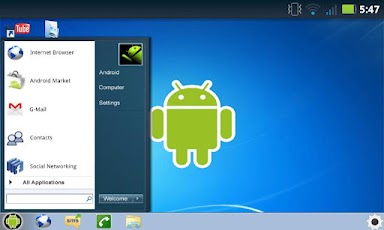
It's finally here! Windows 7 for Android! You can now emulate a desktop pc on your Android device.
Please Note: If you have a Motorola Phone with Motoblur please download "Moto Home Fix" by Nightshade Labs to choose the home application.
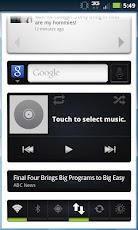
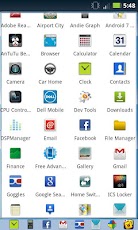
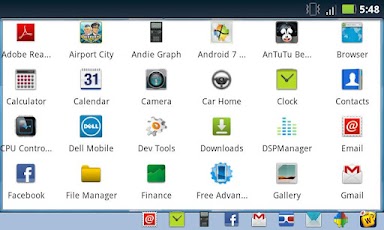
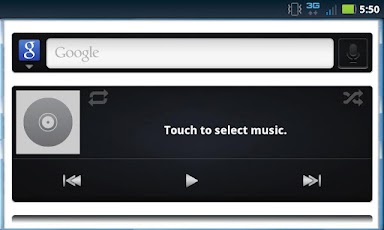
This home application can replace the default home application (if desired) and allows you to access anything on your phone through Windows 7 for Android. No other application required! This is unlike most home or theme applications that require Launcher Pro or similar apps. This means more memory for you and a quicker interface. This application includes many great features; task bar, start menu, widgets page, and of course the desktop. It will function just like a windows computer would function. The task bar includes the main features of your device; the start button, the browser, messaging, dialer, and the launcher. The launcher gives you a list of all installed applications and allows you to pick one to run. The start menu allows you to get quick access to other main applications and settings. Windows 7 for Android also includes a great widgets feature. There is an entire window dedicated to widgets. You are no longer limited to the amount of widgets you can have and now you can get even quicker access to your notifications.

Download : Windows 7 for android

Crack Windows Password Using SAM files

Hi folks...
To hack into any stand alone(when u have no access to system via network) windows system first u have to understand that where does windows keeps it login passwords as it is to be ultimately stored anywhere on harddisk for windows to access it again to verufy via login.

Now the key file of windows where it stores password is named as sam files.These files stores the password in encrypted form so that no one can simply open it and look at the password. Also the sam files are hidden by default so that a user cannot see them normally. Windows also enforces some additional security to these sam files such as u cannot delete copy cut move etc….the same files …. thus it is impossible to yake out sam files out of a system when windows is on…….
So to hack we know the restrictions that windows enforces on us…. now we can plan out the alternate steps to get the sam files………
Do these actions in steps……..
1) Go to folder option and and check “show hidden files” and also uncheck “hide protected system files”
2) Now go to drive where windoes is installed normally in c drive …. go to c:\windows\system\
here u will find some sam file or u can simply search sam file including search hidden file option.
3) now u have found your sam file….. but cant do anthing to it……….as long as windows in on…
4)so we will now try to boot the system with some other operating system and then try to access the dirctory where sam is stored
5)We can use bartpe builder to make a bootable pendrive windows …….. or we can use linux to boot system……such as slax live bootable cd…
NOTE- we need portable os on cd or a pendrive we dont need a bootable windows setup cd….
6)After booting the system go to the directory where sam is present copy the sam files also copy service.sam files to any pendrive or cd……
7) Now u have the protected sam files with u now u can copy these files on other pc …
now u have to decrypt or crack these sam files as these sam files are encrypted using NTLM technique ( Windows NT is called so becuase of this NTLM only)
9) Download Lopht crack or Lc5 cracker or cain and albel,  these all have NTLM crackers…..
10) Run these crackers on Sam files And YUP……. u got the password as well there usernames………
Shortcut Procedure
Download Linux slax with LC5 cracked ………. burn it do a cd the cd automatically becomes bootable…now just put the cd in any system and start it and sit closing ur hands cd will automatically find sam files crack them and show u the passwords with usernames……..
Androite XDA. Powered by Blogger.